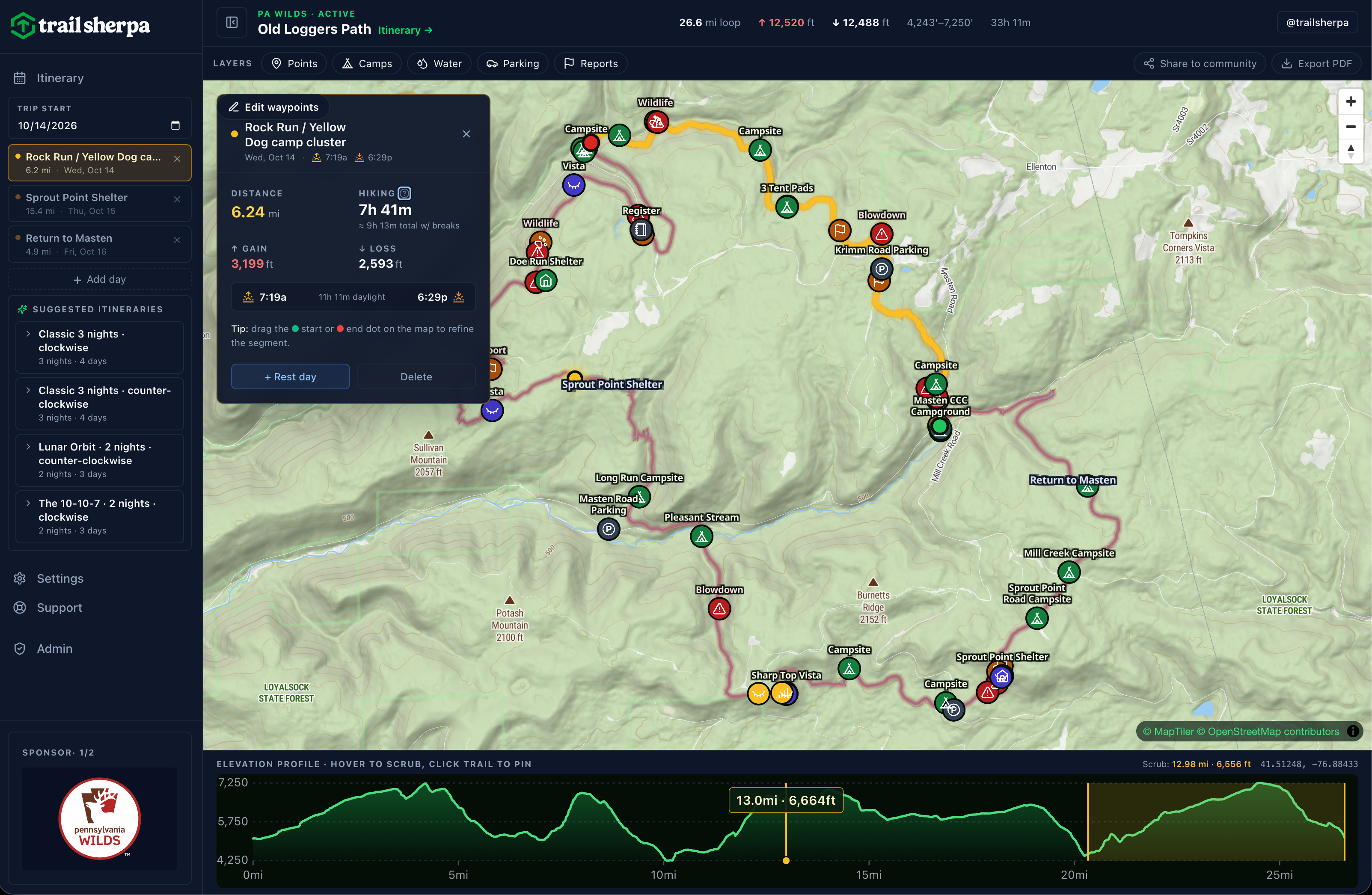
Trail Sherpa's planner is built around one core mechanic: you drag start and end points along the trail, and every mile / elevation / campsite recalculates live. The rest — suggested itineraries, PDF export, sharing — sits on top of that.
This walk-through uses the Old Loggers Path as the example. The Loyalsock Trail planner works identically.
Step by step
- 1
Open a trail
From Basecamp, tap the trail you want to plan — the Old Loggers Path (27-mile loop) or the Loyalsock (57-mile point-to-point). The planner opens with the full trail traced in maroon and a default starting itinerary in the left sidebar.
- 2
Pick a starting itinerary
The "Suggested itineraries" panel in the left rail lists ready-made trip shapes — Classic 3 nights clockwise, Classic 3 nights counter-clockwise, Lunar Orbit (barbell 2-night), and The 10-10-7 (long-weekend 2-night). Tap a card to expand its description, then tap "Apply this itinerary" to load its days. Every day is editable, so this is a starting point, not a commitment.
- 3
Drag to refine each day
Each day in the sidebar has a start and end mile. On the map, drag the green start dot or red end dot along the trail to change where a day begins or ends. The mileage, elevation gain/loss, and estimated hiking time recalculate live using your pace preference from Settings.
- 4
Add or remove days
Tap "+ Add day" at the bottom of the sidebar to split a stretch into two days. Tap the X on any day header to merge it into the neighbor. The trail total distance stays constant; you're just deciding where camps fall along it.
- 5
Save your plan
Once you're signed in, every drag saves automatically to your account. You'll see the same itinerary next time you open the trail — on desktop, phone, wherever. No manual save button, no accidental lost work.
- 6
Export a PDF for the trail
Tap "Export PDF" in the top-right of the planner. You get a printable summary — daily miles, elevation profile, water sources, and campsites — that fits in a ziplock. Take the paper with you; the phone battery is for pictures.
- 7
Share to the community (optional)
Tap "Share to community" to turn your plan into a discussion post. Other hikers can fork it, comment on your choices, or flag conditions along your route. The itinerary shape stays with you; the shared version is a snapshot.

Tips
- Trip start date matters. The date in the top-left of the sidebar drives daylight windows and weather forecasts for each day. Adjust it if your dates change; every day's sunrise / sunset / forecast updates in place.
- Pace is per-user. Set your pace on Settings → Preferences. Day hiker, backpacker, and heavy-load presets adjust the estimated hiking time on every day without changing the miles.
- Condition reports show inline. Red flags on the map are active reports — blowdowns, dry springs, flooded crossings. Tap one to see the reporter, date, and photos. Filed by hikers on the trail this season.
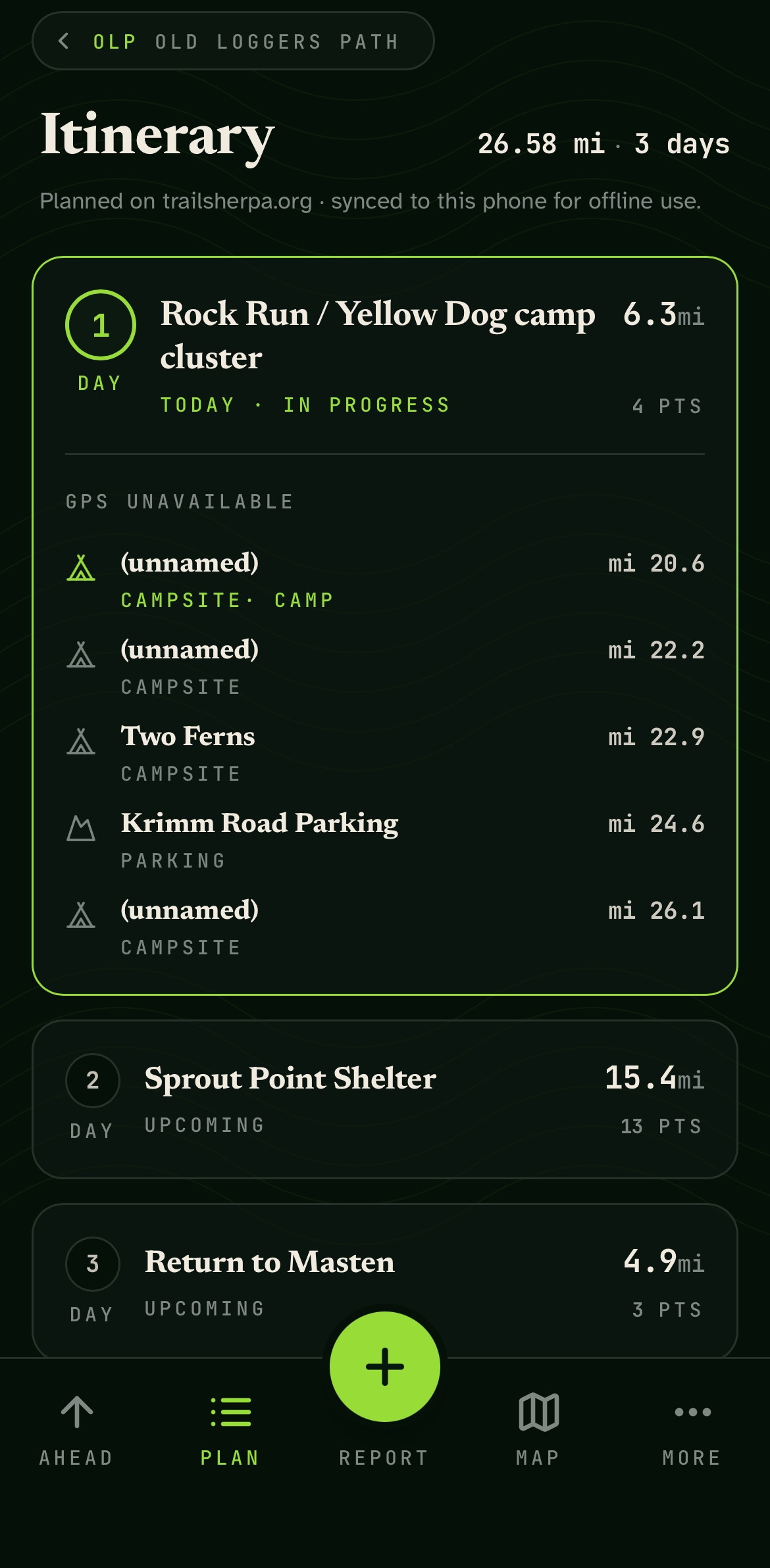
- The planner is offline-friendly. Once you've loaded a trail, the map tiles cache. If you lose signal at a trailhead, the planner still opens and your saved itinerary is still there. Condition reports need signal to refresh, but everything else works.
Ready to plan?
The weekend is calling.
Fall foliage is peaking this week and next in the Pennsylvania Wilds. Sixty seconds to outline a trip.