Trail conditions change constantly. A storm drops a tree across the path; a spring dries up in July; a beaver dam floods a normally-easy crossing. The people best positioned to warn the next hiker are the ones who just saw it, you. A condition report takes about a minute to file and stays visible to everyone planning the trail for the next few weeks.
Every report gets a GPS pin, a category, a short description, and up to three photos. They show up on the trail map (red flags), inside the planner's day cards, and in the community feed. Reports auto-age so the map doesn't drown in old news.

What counts
File a report for anything the next hiker would want to plan around: blowdowns big enough to detour, springs that are running dry, flooded crossings, active wildlife encounters (bears, skunks, rattlesnakes), washouts or slides, missing or wrong signage. Don't file for normal trail wear or things the trail is famous for (yes, Loyalsock is rocky, we know).
Step by step
- 1
Open the Trail Sherpa app on trail
Condition reports are filed from the mobile app (iOS or Android) — that way your phone's GPS pins the report to the exact spot. The planner web app lets you read reports but not file them. If you haven't installed the app yet, do that first (link at the bottom).
- 2
Tap the red flag FAB
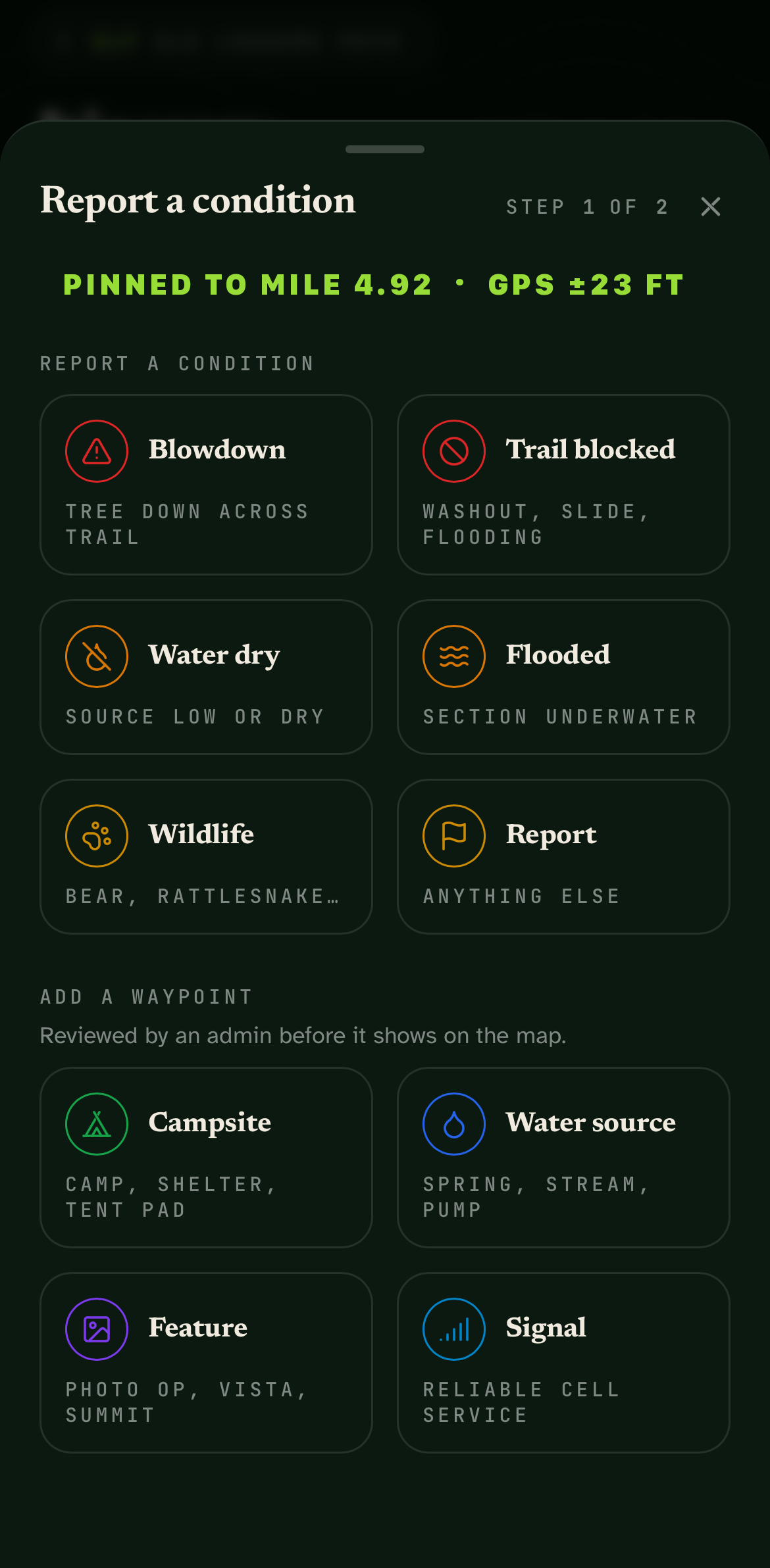
The big green + button in the middle of the bottom tab bar opens the Report a condition sheet. It works whether you have signal or not — reports queue locally and sync when you're back in cell range. The same sheet also has an Add a waypoint section further down (campsite, water source, feature, signal) — this walk-through covers the top half; waypoints work the same way.
- 3
Pick a category
Six presets cover the situations hikers actually report: Blowdown (tree down), Trail blocked (washout, slide, flooding), Water dry (source low or dry), Flooded (section underwater), Wildlife (bear, rattlesnake, aggressive animal), and Report (anything else — signage, trash, unmarked reroute). Pick the one that fits — sub-typing happens later.
- 4
Write a short description
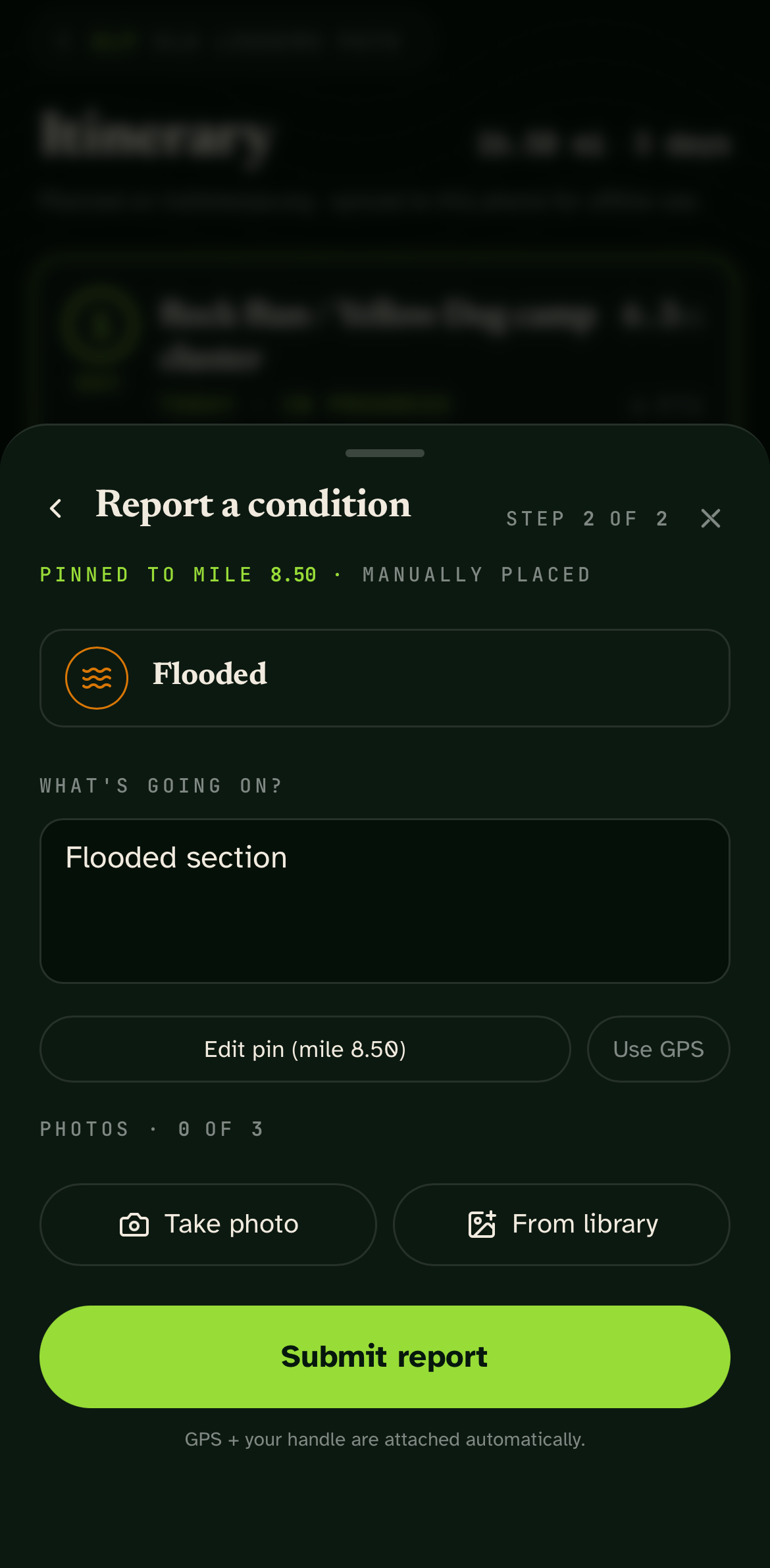
One or two sentences of what and where. "Big oak down across the trail about 100 yards past the Krimm Road parking lot, blocking the treadway. Can be stepped over but not with a big pack." The default text is a starting point — replace or add to it. What's most useful to the next hiker is anything they'd want to plan around.
- 5
Attach up to three photos
Two buttons: Take photo (opens the camera) and From library (opens your photo picker). A wide shot of the situation plus a tight shot of the specific issue tells the story faster than words. Uploads are compressed automatically; the app also extracts each attachment's GPS coordinates from its EXIF data so pin placement stays accurate even when your phone's current position is slightly off.
- 6
Confirm your location
The composer shows "PINNED TO MILE X.XX" under the sheet title — the app auto-pins to your current GPS location on the trail. If you're standing right at the issue, no adjustment needed. If you've moved past it (e.g. filed at the next trail junction so you can pull out your phone safely), tap Edit pin and drag it back to where the issue actually is. Tap Use GPS to snap back to your current position.
- 7
Save
Tap Save report. It saves to your phone instantly, with or without signal, so you can keep hiking. The app uploads your saved reports on its own when you reach Wi-Fi, or anytime you tap Sync on the home screen. Once synced, they appear on the community map within seconds.
Tips
- Two photos beat one. A wide shot for context (which stretch of trail is this?) plus a tight shot of the specific problem tells the story faster than any description. Save the third photo slot for a "here's how I got around it" angle if you found a workaround.
- Reports age automatically. A report is loudest the day it's filed and fades as weeks go by. A blowdown from three months ago that no one's re-filed probably got cleared; if it didn't, the next hiker will report it fresh.
- GPS accuracy shows on the sheet. The composer tells you your current GPS accuracy in feet. If it's above ~50 ft, take a minute for it to settle before submitting — the wrong pin is worse than no pin.
- Built for zero bars. Every report and waypoint saves to your phone first, so weak signal can't stall you. Sync whenever you like: automatically on Wi-Fi (the default), on any signal if you turn that on under Reports, or by tapping Sync. Waiting until you're home is totally fine. The app checks the connection before uploading and holds photos back when the signal is too weak to send them.
- Filed something wrong? Edit or delete it. Your own reports show a menu on the report detail card — you can update the description, swap the photos, or remove the report entirely if you flagged something that turned out to be fine.
What happens next
- Your report appears on the trail map as a red flag within seconds of upload. Anyone browsing the trail — planner sidebar, community, marketing pages — can see it.
- The trail's steward (a local volunteer moderator) gets a notification and can respond, promote the report into a community discussion post, or coordinate a fix if it's something clearing crews would handle.
- Hikers planning trips through that section see your report inside the planner's daily overview so they can adjust or come prepared.
- You retain ownership. You can edit or delete your report at any time from the same composer.
Ready to help
Get the app.
Condition reports are mobile-only. Install Trail Sherpa on iOS or Android and you're ready to file the moment you spot something worth flagging.